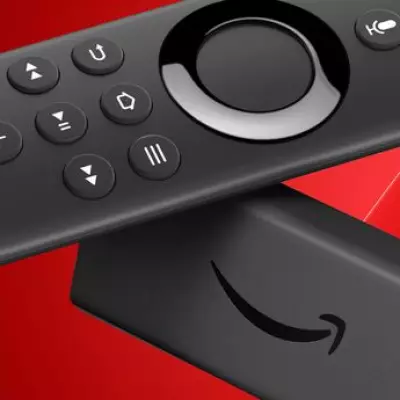
As winter evenings invite cosy nights in with films and binge-worthy series, nothing disrupts the viewing experience more than persistent buffering or slow-loading screens on your television. For owners of Amazon's Fire TV Stick, whether using a newer model or an older version, the culprit behind this frustration is often not the gadget itself but a default setting that can be easily adjusted.
The Simple Setting That Slows Your Stream
The feature causing the issue is called Featured Content autoplay. This function runs preview videos automatically on the home screen as you browse available movies, shows, and apps. These video snippets begin loading in the background before you even select content to watch, competing for your internet bandwidth with your intended stream.
This competition for resources can make the Fire TV Stick feel sluggish, leading to lagging menus and that all-too-familiar buffering wheel interrupting your viewing. Disabling this feature not only promises a smoother, faster navigation experience but also helps conserve data usage—a welcome bonus for those with capped internet plans.

How to Disable Autoplay in Seconds
Fixing the problem is remarkably straightforward and takes mere moments. Follow these simple steps:
- Grab your Fire TV remote and press the Home button.
- Navigate to Settings using the directional pad.
- Select Preferences from the menu.
- Open the Featured Content option.
- Switch Allow Video Autoplay to Off.
- Do the same for Allow Audio Autoplay to fully disable the feature.
Once completed, return to the home screen and start scrolling. You should notice an immediate improvement in responsiveness, with content loading more quickly and without the previous lag.
Additional Tips to Boost Fire TV Stick Performance
If your device continues to operate slowly after disabling autoplay, several additional measures can help restore optimal performance:
- Perform a Soft Reboot: Hold the Select and Play/Pause buttons on your remote simultaneously for a few seconds, or simply unplug the Fire TV Stick from power for 10 seconds before reconnecting it.
- Update Software: Navigate to Settings, then My Fire TV, and select About followed by Check for Updates to ensure you have the latest firmware.
- Optimise Placement: Position the Fire TV Stick within clear line of sight of your WiFi router, avoiding placement behind the television where signals can be weak. If your TV is far from the router, consider using an inexpensive HDMI extender to bring the stick to the front of the screen.
- Reduce Interference: Other electronic devices like baby monitors or cordless phone bases can disrupt WiFi signals. Try relocating these if possible to improve your Fire TV Stick's connection stability.
By taking these simple steps, particularly the crucial autoplay adjustment, Fire TV Stick users can transform their viewing experience, eliminating annoying delays and enjoying seamless streaming during those perfect nights in.