iPhone Users Can Stop Spam Calls in Three Simple Steps
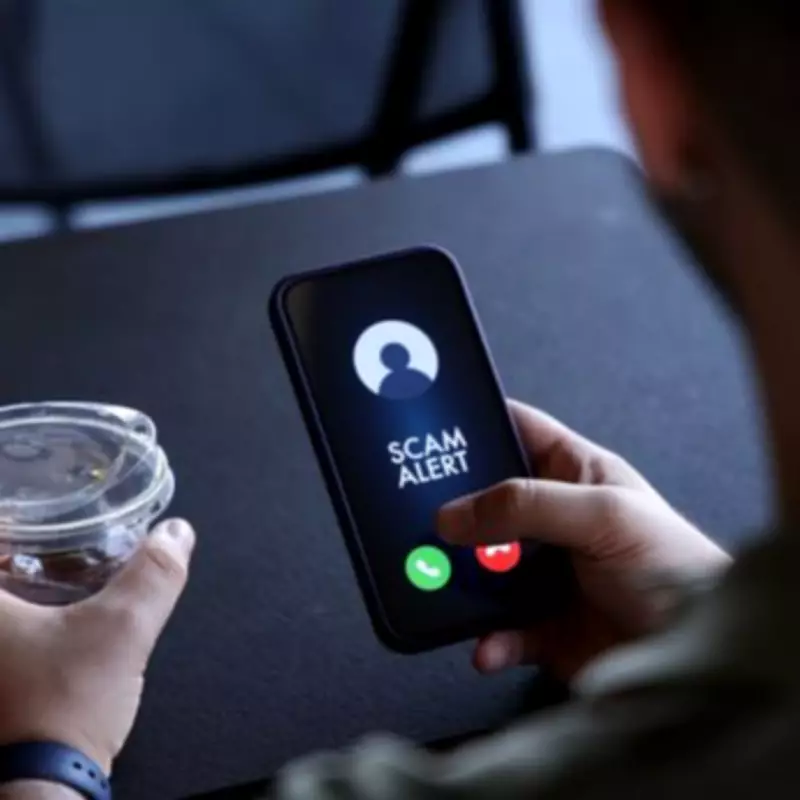
If you are tired of relentless spam calls, there is a straightforward solution to stop them or significantly reduce their frequency. Taking action may be essential to protect your finances from being emptied. The reason is simple - some fraudsters are persuasive and can obtain your personal information within minutes. Before you realise what has happened, your bank balance could be virtually wiped out.
What is the Answer?
In a message to iPhone users, Apple has said that its customers can activate the built-in Silence Unknown Callers feature. If that does not appeal to you, there are two alternative approaches. Here is what you need to know.
Screen or Silence Unknown Callers
Go to Settings, then tap Apps. Tap Phone or FaceTime. Choose how to manage incoming calls from unsaved numbers. This means phone numbers that are not saved in your contacts.

- Phone app: Scroll to Screen Unknown Callers, then select Never, Ask Reason for Calling, or Silence. Never means calls from unsaved numbers ring like any other call; Ask Reason for Calling means these calls are screened (the caller is asked why they are calling before your phone even rings); and Silence automatically silences these calls and sends them to voicemail.
- FaceTime: Tap to turn on Silence Unknown Callers. Calls from unknown numbers are silenced and sent to voicemail.
Filter Unknown Callers
Go to Settings, then tap Apps. Tap Phone or FaceTime. Scroll down to Call Filtering, and turn on Unknown Callers. Missed calls and voicemails from unknown numbers are moved to your Unknown Callers list.
If you want to see your Unknown Callers list in the Phone app or FaceTime, tap the Filter button, then tap Unknown Callers. In the Phone app, this appears in the Recents tab in Classic view, and in the Calls tab in Unified.
Silence Spam Callers
Go to Settings, then tap Apps. Tap Phone or FaceTime. Scroll down to Call Filtering and turn on your spam filter.
- FaceTime: Tap to turn on FaceTime Spam. Calls identified as Spam or fraud are silenced and moved to the Spam list.
- On your phone app: Tap to turn on Spam. Calls identified as Spam or fraud by your phone's network provider are silenced, sent to voicemail, and moved to your Spam list.
To view your Spam list, tap the Filter button, then tap Spam. In the Phone app, this appears in the Recents tab in Classic view, and in the Calls tab in Unified.
Contacts Warning
Apple advises that when enabling these features, it is crucial to add trusted contacts to your address book to ensure you never miss vital calls from family, friends, your child's school, workplace, or GP surgery. "If you call the emergency services, call screening turns off for 24 hours", the company cautions.
Telephone Preference Service
Following Apple's updated guidance to users, the tech giant is not alone in its efforts to combat nuisance calls. Citizens Advice experts recommend registering with the Telephone Preference Service (TPS) as an effective measure.
Once registered, your number will be added to a database of people who do not wish to receive sales and marketing calls. It is illegal for salespeople, whether based in the UK or abroad, to contact numbers listed with TPS.
It adds: "Registering will not stop automated marketing calls, also known as 'computer-generated calls'. This is because the law only applies to people, not computers. You should talk to your telephone provider about how to stop these calls."
The quickest way to register is to fill in the TPS online registration form on the TPS website. To register with TPS you will need your phone number, postcode, and email address.
It is important to note that TPS registration will not prevent scam calls. Information on reporting scams can be found on official websites. You can find out how to report a scam through relevant authorities.